Local Search Ads on Google Maps for Local Businesses
Local Search Ads on Google Maps for Local Businesses

TL;DR:
- Running Google Maps local search ads requires a verified Google Business Profile linked to your Google Ads account and enabled location assets. Ads appear as promoted pins, search results, autocomplete suggestions, and on business detail pages, each with a specific call-to-action. Proper setup, measurement, and campaign management are essential for effective local advertising and offline conversions.
Yes, you can run local search ads that appear on Google Maps — but only if your Google Business Profile (GBP) is verified, linked to your Google Ads account, and location assets are enabled. Without those three things, your ads simply won't show up on the map. Here are the first actions to take right now:
- Verify your Google Business Profile at business.google.com for every physical location you want to advertise.
- Link that verified GBP to your Google Ads account under Tools > Business data > Business Profile connections.
- Enable location assets inside your campaign or at the account level so Maps placements can activate.
One more thing to know upfront: you cannot serve ads exclusively on Google Maps. Campaigns that serve on Maps will also serve across Google Search, and potentially other Google surfaces depending on campaign type. That's not a dealbreaker, but it shapes how you measure and budget.
How do local search ads actually appear on Google Maps?
Google Maps surfaces ads in four distinct placements, and each one looks a little different in the app.
- Promoted pins: Your business location appears as a square branded pin on the map itself, standing out from the standard red teardrop pins. These show when users are browsing or zooming into a local area, even without typing a search query.
- Map search ads: When someone searches "coffee shop near me" or "emergency plumber" inside Google Maps, your ad can appear at the top of the results list, labeled "Sponsored," before the organic listings.
- Map suggest / autocomplete ads: As a user starts typing in the Maps search bar, your business can surface in the autocomplete dropdown. This placement catches high-intent searchers before they even finish their query.
- Business detail page ads: When a user taps on a competitor's or nearby business's detail page, your ad can appear there as a suggested alternative, complete with a call, directions, or website button.
Each placement shows a CTA button: "Call," "Directions," or "Website." The specific button that appears depends on what action Google predicts the user is most likely to take based on context.
Promoted pins tend to trigger when a user is exploring a map area, while map search ads fire on explicit keyword searches. Autocomplete placements are rarer but can be highly effective for urgent-need businesses like locksmiths or urgent care clinics, where the first result often wins the click.

Pro Tip: To confirm your ads are actually showing on Maps, open the Google Maps app on a mobile device, search for your own category in your target area, and look for the "Sponsored" label. You can also check the "Where ads showed" report in Google Ads and filter for Maps placements.
What do you need to be eligible for Maps ads?
Getting your account ready is a checklist exercise. Miss one item and your ads either won't serve on Maps or will underperform.
Account and profile requirements:
- A verified Google Business Profile for each physical location you want to advertise. Service-area businesses (SABs) that hide their address can still run location assets, but promoted pins on the map require a visible address.
- GBP linked to the correct Google Ads account. One GBP can only be linked to one Google Ads account at a time.
- Location assets enabled — either at the account level (applies to all campaigns) or at the campaign level for more control.
- A supported campaign type (see below).
Supported campaign types that can serve on Maps:
- Performance Max for store goals — the most common delivery method today
- Smart campaigns
- Search campaigns with location assets enabled
- Shopping campaigns in some cases, particularly for retailers using local inventory
- Demand Gen for certain travel-related placements
Common eligibility blockers:
- GBP address doesn't match the Google Ads billing address or campaign targeting
- GBP is suspended or pending re-verification
- Location assets are added but not approved (check the Assets tab for status)
- Campaign type doesn't support Maps (e.g., standard Display campaigns)
For service-area businesses, claiming and verifying your Business Profile is still step one, even if you choose to hide your physical address from the public listing.
How do you set up a Google Maps-capable campaign step by step?
This walkthrough assumes you already have a verified GBP and a Google Ads account. If you don't, complete those first.
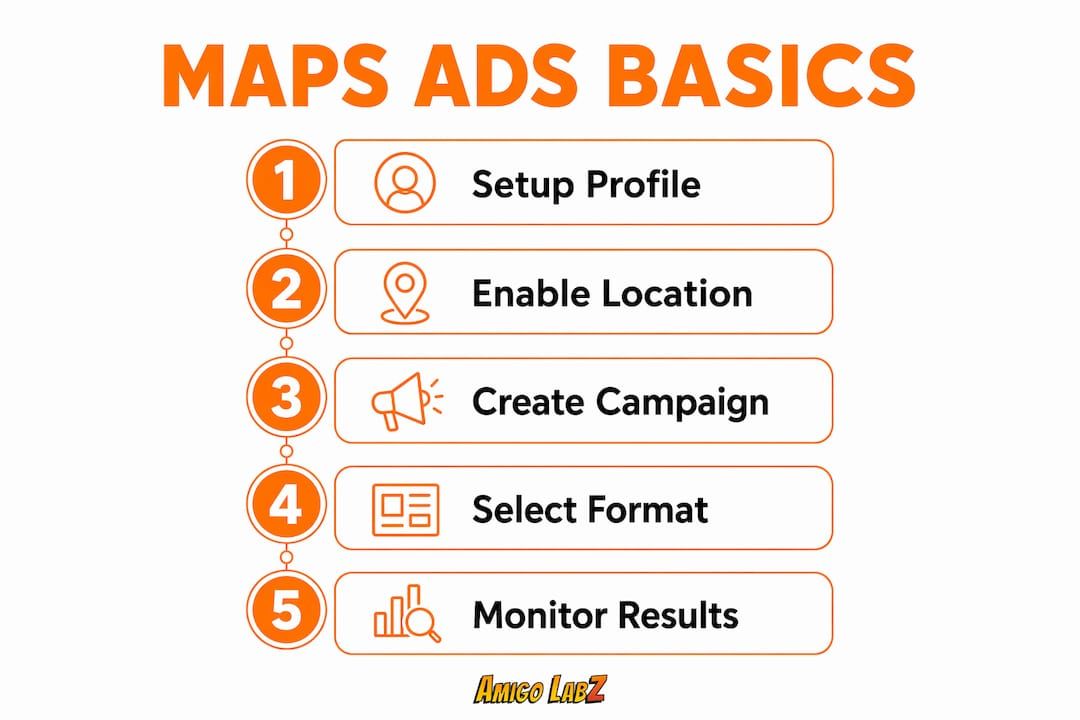
- Choose your campaign objective. In Google Ads, click "+ New campaign" and select "Store visits and promotions" or "Local store promotions." This routes you toward campaign types that support Maps placements.
- Select Performance Max for store goals as your campaign type. It's the most direct path to Maps serving and uses Smart Bidding to optimize for directions, calls, and in-store visits.
- Link your Business Profile. During setup, Google will prompt you to connect your GBP. Confirm the correct location is linked. If you manage multiple locations, link them all.
- Enable location assets. Go to Assets > Location and confirm the status shows "Eligible." If it shows "Limited" or "Disapproved," check the GBP for policy violations or incomplete information.
- Create your assets. Add headlines (up to 15), descriptions (up to 4), and images. Use photos from your actual location — Google pulls some assets directly from your GBP, but adding high-quality images in the campaign gives you more control.
- Set your location targeting. Target by radius around your business address or by city/zip code. For most local businesses, a 10–20 mile radius is a reasonable starting point.
- Set your bid strategy and daily budget. Performance Max uses automated bidding by default. Start with "Maximize conversions" and switch to a target CPA once you have gathered sufficient conversion data in the account.
- Set up conversion tracking before you launch. At minimum, track calls from ads, direction clicks, and website actions. If you have a physical store, enable store visit conversions in your account settings.
- Launch and monitor. Check the campaign daily for the first week. Look at impression share, click types, and whether location assets show "Eligible" in the Assets report.
Pro Tip: Run a small test budget ($15–$25/day) for the first two weeks before scaling. This lets you confirm Maps placements are actually serving and gives you baseline cost-per-direction and cost-per-call data before you commit more spend.
What do the different Maps ad formats look like in practice?
Understanding the formats helps you match the right one to your business goal.

Promoted pins are the most visually distinctive format. Your business appears as a square pin on the map, often with your logo or a promotional offer. A coffee shop running a morning promotion can show a "$1 off espresso" callout directly on the pin. Users browsing the map see it without searching for anything specific.
Map search ads appear at the top of the in-app search results list, above organic listings. These are the closest equivalent to a traditional Google Search ad but inside the Maps environment. A locksmith targeting "locked out of car near me" would want this placement above all others — the user is in distress, on mobile, and ready to call.
Map suggest ads fire in the autocomplete dropdown as users type. They're less common but useful for capturing intent before a competitor's listing even appears. Retailers and restaurants benefit most here.
Business detail page ads show on competitor or nearby business pages. If someone pulls up the detail page for a competing restaurant, your ad can appear as a nearby option. This is a passive but effective format for businesses in high-density areas.
- Promoted pins: best for brand visibility and foot traffic in browse mode
- Map search ads: best for high-intent "near me" searches and urgent services
- Map suggest ads: best for capturing early-funnel searchers in competitive categories
- Business detail page ads: best for conquest targeting in dense local markets
How do location targeting, bidding, and budgets work for Maps?
Google's auction for Maps placements weighs three factors heavily: the user's physical proximity to your business, the local intent of their search query, and your bid relative to competitors in that area. You don't bid specifically for Maps — you bid for the campaign, and Google decides which surface to serve on based on predicted conversion probability.
Bidding options:
- Performance Max with Smart Bidding adjusts bids in real time based on distance, time of day, device, and dozens of other signals. It's the most hands-off option and the one Google pushes hardest for Maps.
- Smart campaigns use a similar automated approach but with less transparency and fewer controls.
- Search campaigns with location assets give you manual or automated bidding with more keyword-level control. You can apply bid adjustments by location (e.g., +20% for users within 2 miles of your store).
Budget guidance:
Costs vary significantly by industry and market. In competitive verticals in major metro areas, short-tail keywords can run $10–$50+ per click. Long-tail, high-intent terms in smaller markets cost considerably less and often convert at a higher rate. A reasonable starting test budget for a local service business in a mid-size U.S. city is modest and should be adjusted based on campaign performance and market conditions.
- Use location bid adjustments in Search campaigns to increase bids for users physically close to your store
- Use dayparting (ad scheduling) to concentrate spend during your business hours or peak demand windows
- Avoid running Performance Max or Smart campaigns without conversion tracking — without it, the algorithm has nothing to optimize toward
Pro Tip: Don't set a radius so wide that you're paying for clicks from users who would never realistically visit your location. For brick-and-mortar businesses, tighter radii (5–10 miles in urban areas) usually produce better cost-per-visit numbers than broad city-level targeting.
How do you measure whether your Maps ads are actually working?
The metrics that matter for Maps ads are different from standard search campaigns. You're not just counting website sessions — you're measuring offline behavior.
Key metrics to track:
- Location detail clicks: User clicked to expand your business info on the map.
- Direction clicks: User tapped "Get directions" — a strong signal of purchase intent.
- Mobile clicks-to-call: User called directly from the ad.
- Store visits: Estimated visits to your physical location attributed to ad exposure.
- Website actions: Standard conversions (form fills, bookings) from users who clicked through to your site.
Google reports these click types separately in the campaign view. To see them, go to Columns > Modify columns > Competitive metrics and add "Click type" as a segment.
Setting up conversion tracking:
- Enable call extensions and call reporting in Google Ads to track mobile click-to-call events.
- Turn on store visit conversions under Tools > Conversions > Store visits (requires sufficient traffic volume and location history data from opted-in users).
- Upload offline conversions from your POS or CRM to close the loop between ad clicks and actual sales.
A note on store visit data: Google's store visit estimates are modeled, not exact. They rely on aggregated, anonymized location signals from users who have opted into location history. Validate the numbers by comparing them against your POS data or booking system during the same period. If Google reports 200 store visits from ads in a month and your POS shows a 15% lift in new customers, that's a reasonable signal the attribution is directionally correct.
Maps-native traffic tends to convert at a lower cost per acquisition for local service businesses compared with other channels, because users searching inside Google Maps have already demonstrated local intent. That intent signal is what makes direction clicks and call clicks so valuable relative to a standard website click.
How do Maps ads compare with Local Services Ads and organic listings?
These three options serve different purposes and work best in combination.
| Feature | Google Ads (Maps/Search) | Local Services Ads (LSAs) | Organic GBP Listing |
|---|---|---|---|
| Pricing model | Pay-per-click (PPC) | Pay-per-lead (PPL) | Free |
| Keyword control | Full control | None | N/A |
| Ad copy control | Full control | Limited | Partial (posts, descriptions) |
| Google Guarantee badge | No | Yes (verified businesses) | No |
| Placement | Maps, Search, network | Top of Search results | Maps, Search (organic) |
| Eligibility | Any business with GBP | Select service categories | Any verified GBP |
| Setup complexity | Moderate to high | Low | Low |
Google Ads gives you control over copy and keywords; LSAs simplify lead capture with pay-per-lead pricing and add the Google Guarantee badge for eligible service businesses. The tradeoff is real: LSAs are easier to run but restrict you to categories Google approves, and you can't control the ad copy.
When to run both: A plumber, electrician, or HVAC company should run LSAs for the Google Guarantee badge and PPL pricing, and run Google Ads Maps campaigns in parallel for broader keyword coverage and more control over messaging. The two don't compete — they occupy different positions on the results page.
When one alone makes sense: A restaurant or retail store won't qualify for LSAs. For those businesses, Google Ads Maps campaigns and a well-optimized organic GBP listing are the two levers to pull. Organic local SEO and paid Maps ads reinforce each other — a strong GBP improves ad relevance scores and can lower your cost per click.
What are the best practices for improving Maps ad ROI?
The biggest performance gains usually come from the basics done well, not from advanced tactics.
GBP hygiene:
- Keep hours accurate, including holiday hours. Google uses GBP data to decide when to show your ads.
- Add at least 10 high-quality photos of your location, products, or team. Ads pull images from GBP, and better photos improve click-through rates.
- Fill out every attribute: parking, accessibility, payment methods, service areas.
- Respond to reviews regularly. Review velocity and rating affect your organic ranking and ad quality signals.
Creative and targeting:
- Write headlines that include a local signal ("Open Now in [City]," "Same-Day Service in [Neighborhood]").
- Use call assets and location assets together — they stack and give users more ways to engage.
- Add negative keywords to Search campaigns to block irrelevant traffic. Performance Max doesn't support negative keywords at the campaign level natively, so use account-level negative keyword lists.
- Test two or three image sets in Performance Max and let Google optimize toward the best performer after two weeks.
Measurement and attribution:
- Upload offline conversions from your POS or booking system at least weekly. This feeds the Smart Bidding algorithm real transaction data, not just clicks.
- Use a 7-day or 14-day lookback window for store visit conversions to reduce over-attribution from users who visited your store for unrelated reasons.
- Cross-reference Google Ads store visit data with your own foot traffic counts monthly.
Pro Tip: Pair your Maps campaign with a well-optimized Google Business Profile — the two reinforce each other. A complete, active GBP improves your ad's quality score and can reduce your cost per click over time.
Why aren't your Maps ads showing? Common fixes
If your ads aren't appearing on Google Maps, work through this diagnostic list before changing bids or budgets.
Problem: Ads not showing on Maps at all
- Check that location assets are enabled and show "Eligible" in the Assets tab. "Limited" usually means the GBP address doesn't match the campaign targeting.
- Confirm the GBP is linked to the correct Google Ads account. Go to Tools > Business data > Business Profile connections.
- Verify the campaign type supports Maps placements. Standard Display or Video campaigns don't.
Problem: Low impressions
- Your targeting radius may be too narrow, or your daily budget is exhausted before peak hours.
- Bid too low for the local auction. Check Auction Insights to see where you rank against competitors.
- GBP may be missing key information (hours, address, phone) that Google uses to match ads to queries.
Problem: Location assets disapproved
- The most common cause is a GBP policy violation (unverified address, prohibited content in the listing, or a suspended profile). Fix the GBP issue first, then request asset re-review.
- Address mismatch between GBP and Google Ads billing address can trigger disapprovals. They don't need to match exactly, but the location must be in the campaign's target area.
Problem: Ads showing but no direction or call clicks
- Your CTA buttons may not be prominent enough. Add call assets explicitly rather than relying on auto-generated assets.
- Check mobile performance separately. Maps ads are almost entirely a mobile placement — if your mobile bid adjustment is set too low, you're losing most of the auction.
Problem: Merchant Center inventory not showing
- Confirm your local inventory feed is approved in Merchant Center and that the store code matches your GBP location ID.
- Local inventory ads require a separate feed from your standard product feed. Check feed status under Products > Feeds in Merchant Center.
Key Takeaways
Running local search ads on Google Maps requires a verified, linked Google Business Profile, location assets enabled in Google Ads, and a supported campaign type — without all three, your ads won't serve on the map.
| Point | Details |
|---|---|
| GBP verification is non-negotiable | Verify and link your Google Business Profile before launching any Maps campaign. |
| Performance Max is the primary path | Use Performance Max for store goals to access promoted pins, map search ads, and automated bidding. |
| Track offline actions, not just clicks | Monitor direction clicks, mobile calls, and store visits — these are the real conversion signals for Maps ads. |
| Maps ads can't be Maps-only | Campaigns serving on Maps also serve across Google Search and other surfaces; budget accordingly. |
| Amigolabz handles the full setup | Amigolabz manages GBP optimization, campaign build, and offline conversion wiring for U.S. local businesses. |
The part most local businesses get wrong about Maps ads
Most local business owners assume that once they set up a Google Ads account and check a few boxes, Maps ads will just work. They won't — at least not well. The account connection between Google Business Profile and Google Ads is fragile. It breaks when someone updates the GBP address, when a profile gets re-verified, or when a new team member creates a second Google Ads account by accident. The first thing to audit when a Maps campaign underperforms is always the link status, not the bids.
The second thing most owners get wrong is measurement. They look at clicks and impressions and conclude the campaign isn't working because they don't see a spike in website traffic. But Maps ads are built to drive offline behavior: a direction tap, a phone call, a walk-in. If you're not tracking those actions specifically, you're flying blind. The store visit and offline conversion setup takes about an hour to configure properly, and it changes how you interpret every number in the account.
One experiment worth running this week: launch a 30-day Performance Max campaign with store goals, set a modest daily budget, and track direction clicks and calls as your primary conversions. Don't touch the bids for the first two weeks. After 30 days, compare your cost per direction and cost per call against what you'd pay a lead generation service for the same volume. The math usually surprises people.
Amigolabz gets your Maps ads live and working from day one
Running Google Maps ads correctly means wiring together three separate systems — Google Business Profile, Google Ads, and your conversion tracking — and keeping them in sync as your business changes. Most local businesses set up two of the three and wonder why results are inconsistent.

Amigolabz handles the full stack for local businesses across the U.S., with offices in New Jersey and Nevada. That means GBP optimization, Google Ads campaign management, Performance Max build-out for store goals, local inventory integration, and offline conversion wiring so your bidding algorithm has real data to work with. You get a team that has done this for local businesses in competitive U.S. markets, not a generic agency running the same playbook for every client.
If your Maps ads aren't showing, aren't converting, or you haven't started yet, book a call with the Amigolabz team and get a straight answer on what's missing and what it will take to fix it.
Useful sources
The sources below are the primary references for this guide. Bookmark the Google Ads Help pages — they update when Google changes how Maps ads work.
- Show local search ads on Google Maps (Google Ads Help): The official reference for Maps ad formats, location asset requirements, and click type reporting. Start here for any setup or troubleshooting question.
- How to advertise in Google Maps (Google Ads Help): Covers supported campaign types, local inventory integration with Merchant Center, and Demand Gen placements. Use this when selecting your campaign type.
- About Local Ads (Google Ads Help): Explains how Local Ads work across Search, Maps, and Waze, including how square pins and search result placements interact.
- Local Services Ads overview (Google): The official page for LSA eligibility, the Google Guarantee badge, and pay-per-lead pricing. Use this to decide whether LSAs are a fit for your category.
- Google Ads vs. Local Services Ads for small business marketing (Google Business Resources): A plain-language comparison of the two ad types, useful for owners deciding where to start.
- Google Maps Ads cost and strategy guide (IBLead): Practical cost benchmarks by industry and market size, including CPC ranges for competitive verticals.
FAQ
What are Google local search ads on Maps?
Local search ads on Google Maps are paid placements that appear as promoted pins on the map, sponsored listings in Maps search results, and ads on business detail pages. They require a verified Google Business Profile linked to a Google Ads account with location assets enabled.
Are Google Local Services Ads worth it for small businesses?
LSAs are worth it for businesses in eligible service categories (plumbers, electricians, lawyers, and similar) because you pay per lead, not per click, and the Google Guarantee badge builds trust. For businesses outside those categories, standard Google Ads Maps campaigns are the alternative.
What is the difference between Google Ads and Local Services Ads?
Google Ads uses a pay-per-click model with full control over keywords and ad copy; Local Services Ads use pay-per-lead pricing with a Google Guarantee badge but no keyword control and limited copy options. The two can run simultaneously and occupy different positions on the results page.
How much do Google Maps ads cost?
Costs depend on industry and location. In competitive verticals in major U.S. cities, clicks can run $10–$50+ for short-tail keywords; long-tail, high-intent terms in smaller markets cost significantly less. A reasonable starting test budget for a local service business is $20–$40 per day.
Can you run ads that show only on Google Maps?
No. There is no option to serve ads exclusively on Google Maps. Campaigns that serve on Maps will also appear across Google Search and potentially other Google surfaces depending on the campaign type.
Recommended