How to Get Your Business on Google Maps
How to Get Your Business on Google Maps

Create or claim your Google Business Profile, then verify it. That single move puts your business on Google Maps and Search, and it's the only way to control the name, hours, and photos strangers see before they walk through your door.
Once you're signed into a Google account, here's what happens next:
- Find or add your listing at Business or directly inside Google Maps
- Fill in the core details : name, address or service area, phone, category, and hours
- Start verification immediately, since an unverified profile can't show your edits publicly
Google typically reviews verification requests within a few business days, though postcard verification takes longer because it has to arrive in the mail. Everything about this process is free. Nobody should ever charge you just to claim a listing.
Key Takeaways
Getting your business on Google Maps requires creating or claiming a verified Business Profile, then maintaining accurate details, photos, and reviews to stay visible.
| Point | Details |
|---|---|
| Verify before editing | Google restricts edits on unverified profiles, so verification comes before optimization. |
| Expect a short wait | Most verification requests process within a few business days; postcards take longer. |
| Match your NAP everywhere | Keep name, address, and phone number identical across your website and every directory. |
| Fix suspensions fast | Address category errors, P.O. box addresses, or duplicate listings immediately to avoid removal. |
| Consider managed support | Amigolabz handles setup, verification, and ongoing optimization for owners managing multiple locations or recovering from a suspension. |
Prerequisites for Getting Your Business on Google Maps
Before you touch the sign-up form, get your ducks in a row. You'll need a Google account tied to the business, ideally a company email address rather than someone's personal Gmail that might leave the company someday.
Have these ready:
- Exact legal business name (not a keyword-stuffed version)
- Complete address, or your service area if you don't have a storefront
- A working phone number and website
- Business hours and the most accurate category you can find
Eligibility hinges on one rule Google enforces strictly: only businesses that make in-person contact with customers during stated hours, or that travel to customers, qualify for a profile. A P.O. box won't cut it as an address, and Google expects one profile per physical location, not five variations to game search results. Keep your name, address, and phone number identical across your website and directory listings. Inconsistent NAP data is one of the most common reasons a profile stalls in review.
How Do You Add or Claim a Business on Google Maps?
The mechanics differ slightly depending on whether you're at a desktop or standing in your shop with your phone. Here's each path.
On desktop through Business Profile Manager:
- Go to business.google.com/add and sign in
- Search for your business name. If it already exists (Google sometimes auto-generates listings from other data sources), claim it. If not, create a new one
- Enter your address, service area, category, and phone number exactly as they appear on your website
- Choose your primary category carefully. This single field influences which searches you show up for more than almost anything else on the profile
- Submit for verification
Directly in Google Maps:
Search your business name in Maps. If a listing pops up unclaimed, you'll see "Claim this business." If nothing shows, select "Add a missing place" and fill in the details yourself.
On the Google Maps mobile app:
Tap your profile icon, then look for "Your Business Profile" or "Add your business," and follow the prompts. This is often the fastest route if you're verifying a phone number and want the SMS code to land on the same device.
If you manage more than one location, whether that's three plumbing trucks covering different counties or a chain of salons, Business Profile Manager lets you handle every listing from one dashboard instead of juggling logins.
Pro Tip: Pin your map marker to the actual entrance customers use, not just the rooftop centroid Google guesses. A pin that's off by even half a block can push you out of the map pack for "near me" searches.
How Long Does Google Maps Verification Take?
Google offers several verification methods, and which ones you're offered depends on your business type and risk profile. The main options are ADDRESS (postcard), EMAIL, PHONE_CALL or SMS, AUTO, and VETTED_PARTNER, and some businesses are also offered video or live-call verification.
- Postcard: Google mails a PIN to your address; you enter it once it arrives
- Phone or SMS: Instant code sent to the number on file
- Email: Fastest option when it's available
- Video or live verification: Increasingly used for businesses Google flags for extra scrutiny
- Vetted partner: Agencies and platforms with API access can complete verification on a client's behalf
Verification requests are usually reviewed within a few business days, but postcard delivery adds real mail time on top of that. If you manage many locations, bulk or partner-based verification through the API moves faster than requesting postcards one at a time. Didn't get your PIN, or did it not work? Request a new one before assuming something's broken. Repeated failures are your cue to contact Business Profile support directly.
What Makes a Google Maps Listing Rank Higher?
A verified profile is the entry ticket. What happens after verification decides whether you show up in the top three map pack results or get buried on page two.
Fill in every field Google offers: primary category, secondary categories, a full services or products list, hours (including holiday hours), phone, and website. Gaps in your profile read as incomplete to Google's ranking algorithm, and incomplete listings routinely lose ground to fuller ones.
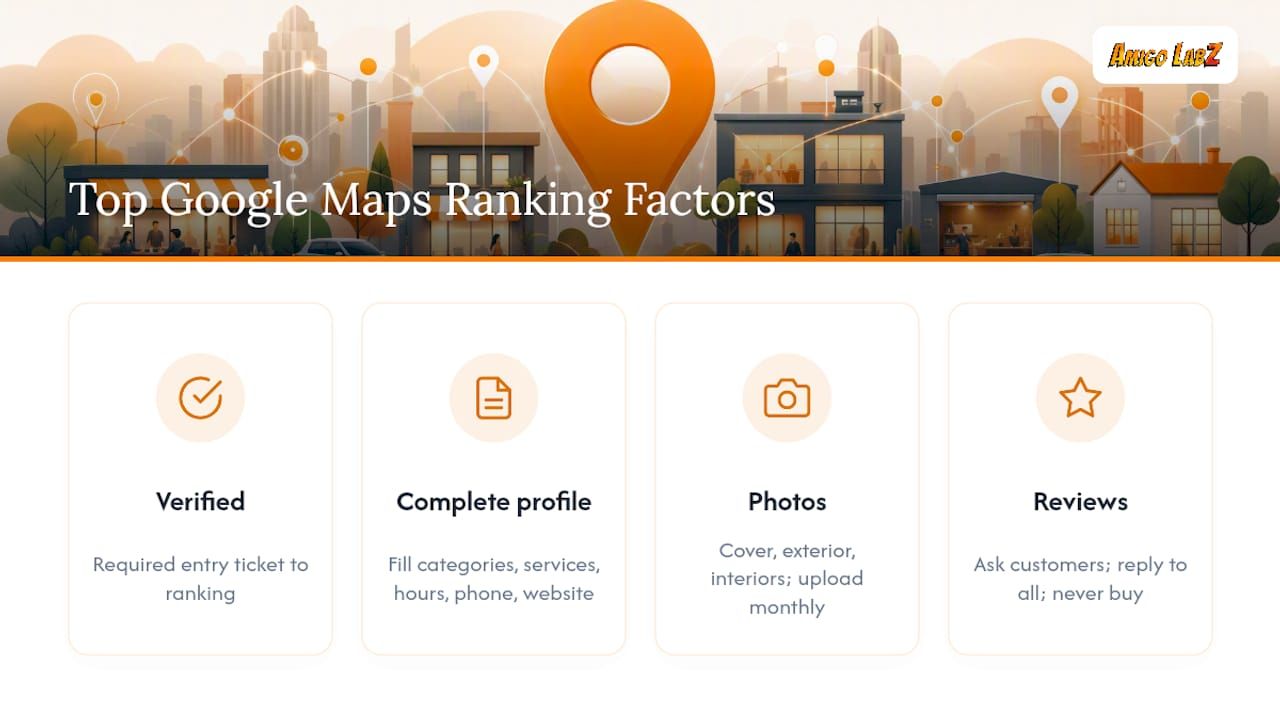
Photos matter more than most owners assume. Listings with a real cover photo, exterior shot, and several interior images consistently outperform bare-bones profiles with a stock logo. Add new photos every month or two to signal an active business.
Reviews carry serious weight, both in ranking and in whether someone actually calls you. Ask satisfied customers directly. Respond to every review, good or bad, since a thoughtful reply to a one-star review often does more for trust than another five-star one. Never buy or incentivize reviews. Google can and does suspend profiles over it.

Beyond the basics, use Posts to announce offers, add booking links if you take appointments, and build out a product menu if you sell physical goods. Keep your phone number and website URL identical everywhere they appear online, since consistent NAP data reduces verification friction and keeps listings stable long term.
Pro Tip: Set a recurring monthly reminder to upload at least two new photos and publish one Post. Stale profiles quietly lose visibility even after they rank well once.
Why Isn't My Business Showing Up on Google Maps?
A few problems account for most disappearing or invisible listings:
- Duplicate listings. Search your business name in Maps. If you find two entries, request a merge through Business Profile support, or claim ownership of the older one and remove the duplicate
- Not showing in search. Check verification status first, then confirm your address pin is precise and every core field is filled in
- Suspension. Usually caused by a keyword-stuffed name, a P.O. box listed as an address, multiple profiles for one location, or a category that misrepresents the business
- No response from Google. File an appeal through Business Profile support or post in the Business Profile community forum, where Google's product experts often weigh in on stuck cases
Service-area businesses without a storefront should double check they've set a service-area profile rather than a fixed address, since a precisely defined service region reduces "not showing" issues considerably.
Managing Your Listing After Verification
Verification isn't the finish line. It's what unlocks the tools that actually drive customers your way: photo uploads, review responses, Posts, and performance Insights showing how people found you and what they did next.
Build a simple weekly habit:
- Respond to any new reviews within a day or two
- Publish one Post or offer
- Check the Q&A section for questions you haven't answered
- Skim Insights for search queries and adjust your categories or description if something surprising shows up
If you're getting calls or bookings through the profile, add scheduling or ordering integrations. They shorten the path from "found you on Maps" to "became a customer," which is the entire point of being there.
Pro Tip: Insights data on the search terms people used to find you often reveals a service you should be marketing louder, or a category you're missing entirely.

What the Standard Advice Gets Wrong
Most guides treat Google Maps setup as a five-minute task: claim it, verify it, done. That's technically true and practically misleading. The setup takes five minutes. Staying visible takes ongoing attention, and that's the part conventional advice glosses over.
The bigger blind spot is eligibility. Owners obsess over photos and posts while ignoring the policy language that actually determines whether Google keeps their listing live. A business that doesn't make genuine in-person contact with customers during its stated hours can get flagged, no matter how many five-star reviews it has. Read the eligibility rules before you optimize anything else.
Here's what I'd prioritize differently than most checklists: get the category and NAP consistency right before touching a single photo. A gorgeous profile with the wrong primary category or a mismatched phone number across the web will underperform a plain, accurate one every time. Precision beats polish in this game, and it's not close.
If you're running one location and have an hour to spend, do it yourself. If you're managing multiple locations, recovering from a suspension, or you simply don't have the hour, that's when bringing in help stops being a luxury and starts being math.
How Amigo Labz Handles Google Business Profile Setup
Doing this yourself works fine for one location and a free afternoon. It stops working once you're juggling three locations, fighting a suspension, or watching your listing sit invisible for weeks with no clear reason why. That's where Amigolabz steps in as the hands-on alternative to figuring out Google's policy language on your own.

Amigolabz sets up and verifies Business Profiles for local companies across New Jersey and Nevada, then keeps them optimized long after the initial claim: categories tuned to what customers actually search, photos rotated on a schedule, reviews answered within a day, and monthly Posts that keep the listing active in Google's eyes. For businesses juggling multiple locations or recovering from a suspension, that ongoing attention is usually the difference between a listing that ranks and one that quietly fades.
If your listing is stuck, suspended, or just never took off, visit the Google Business optimization service page to see how Amigo Labz's managed approach works, or book a call to get your specific situation looked at directly.
Sources
FAQ
Is It Free to Put Your Business on Google Maps?
Yes. Adding or claiming a Business Profile costs nothing through business.google.com/add or directly in Google Maps. Anyone charging you just to claim a listing is selling you something you can do yourself for free.
How Much Money Do I Need to Add My Business to Google Maps?
None for the listing itself. Costs only come in if you hire help for optimization, run paid ads alongside your profile, or invest in professional photos, none of which are required to appear on Maps.
Can You Really Make $100 to $200 a Day With Google Maps?
Google Maps itself doesn't pay businesses; it's a discovery tool, not an income source. Any income comes from customers who find your business through Maps and buy something, so results depend entirely on your industry, pricing, and how well your profile converts searches into calls or visits.
Can Anyone Add a Business to Google Maps?
Only the business owner or someone with express authorization from the owner should verify and manage a profile, per Google's ownership guidelines. Adding a business you have no legitimate connection to violates policy and risks removal.
Recommended